
Most online harm reaches children through a few open doors: search results, YouTube, social media, chat apps and an unprotected device. You can close all of them in about twenty minutes.
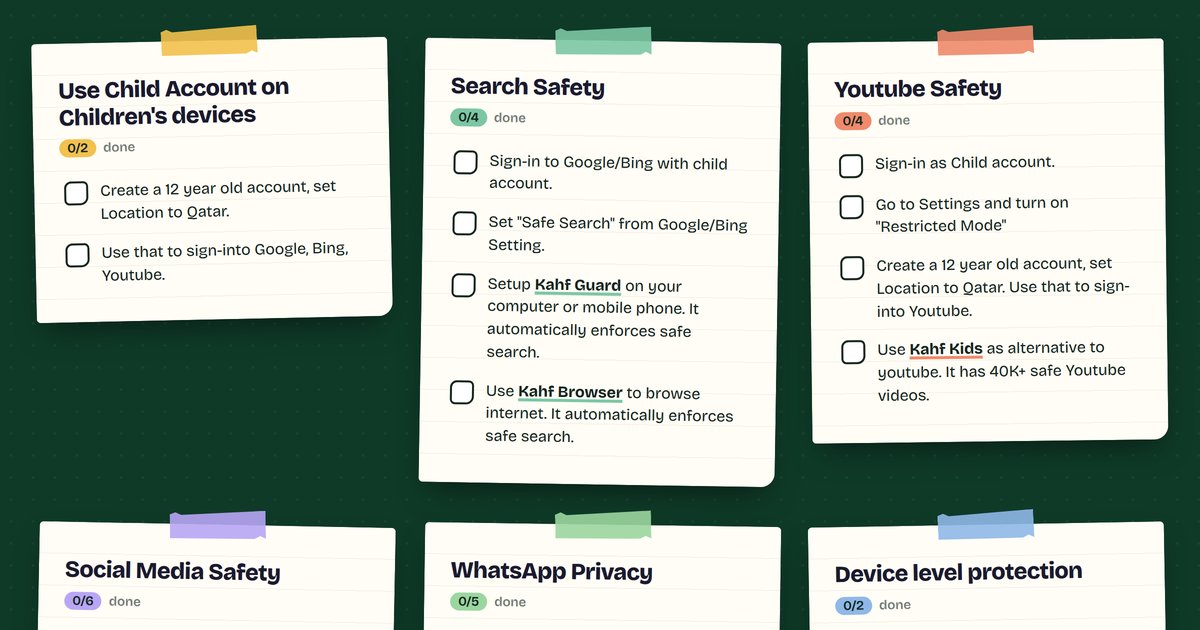
We put the steps into one page you can tick off as you go: the Online Safety Checklist. This post explains what each step does and why it matters.
Why a checklist, not a lecture
Parents rarely lack the will to protect their children. They lack time, and nobody tells them which settings matter. A short list, done once per device, does more than a long article you never act on.
Do it with your child sitting next to you. Setting rules together works better than imposing them.
1. Use a child account on your children’s devices
Everything else on the list builds on this step.
- Create a child account with a birth year that makes the account 12 years old, and set the location to Qatar.
- Use that account to sign in to Google, Bing and YouTube.
A child account tells these services that the person using them is young, so they apply stricter content defaults from the start.
2. Make search safe
Search is where children first run into content they were never meant to see.
- Sign in to Google and Bing with the child account.
- Turn on Safe Search in the Google and Bing settings.
- Install Kahf Guard on your computer or phone. It enforces safe search automatically.
- Browse with Kahf Browser. It also enforces safe search automatically.
Settings can be switched off by a curious child. Kahf Guard and Kahf Browser do not depend on a single toggle that is easy to undo.
3. Lock down YouTube
YouTube is often a child’s main screen, and its recommendations can drift quickly.
- Sign in with the child account.
- Open Settings and turn on Restricted Mode.
- Use the 12-year-old, Qatar-location account from step 1.
- Consider Kahf Kids as an alternative to YouTube. It offers 40K+ safe YouTube videos, so children can watch without the open feed.
4. Set social media privacy
Public profiles let strangers find and message your child. Switch them to private.
- Instagram: Settings > Private account, turn it on. Then go to Settings > Private account > Limit and Hidden Words and turn that on.
- TikTok: Settings > Private Account. Then Settings > Restricted mode.
- Discord: Settings > Keep me safe.
- Messenger Kids: for younger children, use this instead of regular Messenger.
Menu names change between app updates. If you cannot find an option, search the settings for “private” or “safe”.
5. Tighten WhatsApp privacy
WhatsApp is where many children first talk to people outside their family and school. In Settings > Privacy, set:
- Last seen & online: Nobody (Online: Same as last seen)
- Profile picture: My contacts
- Status: Only share with… (Allow sharing off)
- Groups: My contacts
- Read receipts: Off
The Groups setting matters most. It stops strangers from adding your child to groups they did not choose to join.
6. Protect the device itself
- Make sure antivirus is working. On Windows, check that Windows Defender is up to date.
- Install operating system updates. Many attacks use bugs that updates have already fixed.
Prefer not to do it by hand?
Kahf Guard and Kahf Browser switch on safe search for you, on every device. Kahf Kids gives younger children a safe place to watch and learn.
After the checklist
- Revisit it every few months. Apps move their settings around.
- Talk with your child about what they see online, and make it clear they can come to you without fear of punishment.
- Keep devices in shared spaces for younger children.
No tool replaces a parent who stays involved. These settings give you a safer starting point, and the conversations do the rest.